Making Wallpaper as default without GPO and giving user freedom to change the wallpaper
Making Wallpaper as default without GPO and giving user freedom to change the wallpaper
Customizing Windows 11 Default Wallpaper
Windows 11 allows wallpaper customization through two traditional methods:
- Manual changes (affects only user profile)
- Group Policy (GPO - system-wide, but restricts user changes)
Here’s a third method that sets a custom default wallpaper while maintaining user freedom to change it later.
The Default Wallpaper Location
Windows 11’s default wallpaper is located at:
1
C:\Windows\Web\Wallpaper\Windows\img0.jpg
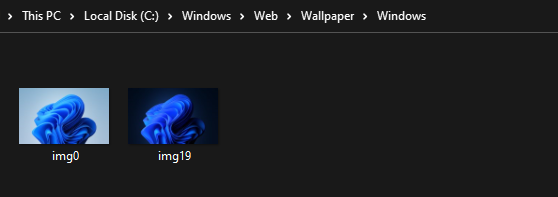
Steps to Replace Default Wallpaper
Method 1: Using PowerShell
- Open PowerShell as Administrator
- Run the following commands:
1
2
3
4
5
6
takeown /f C:\Windows\Web\wallpaper\Windows\img0.jpg
takeown /f C:\Windows\Web\4K\Wallpaper\Windows\*.*
icacls C:\windows\Web\Wallpaper\Windows\img0.jpg /Grant 'System:(F)'
icacls C:\Windows\Web\4K\Wallpaper\Windows\*.* /Grant 'System:(F)'
Remove-Item C:\windows\Web\Wallpaper\Windows\img0.jpg
Remove-Item C:\Windows\Web\4K\Wallpaper\Windows\*.*
Method 2: Manual Permissions
If Method 1 fails:
- Right-click
img0.jpg→ Properties - Select Security tab → Administrator → Edit
- Grant Full Control to Administrator
- Apply changes
Final Steps
- Delete the original
img0.jpg - Copy your custom wallpaper to
C:\Windows\Web\Wallpaper\Windows\ - Rename it to
img0.jpg
This method will set your custom image as the default Windows 11 wallpaper while allowing users to change it if desired.
This post is licensed under CC BY 4.0 by the author.