Fixing TPM Error While Installing Windows 11 on ESXi or Unsupported Hardware
Fixing TPM Error While Installing Windows 11 on ESXi or Unsupported Hardware
Encountering a TPM error while installing Windows 11 on ESXi or unsupported hardware? Follow these steps to resolve the issue.
Error Screenshot
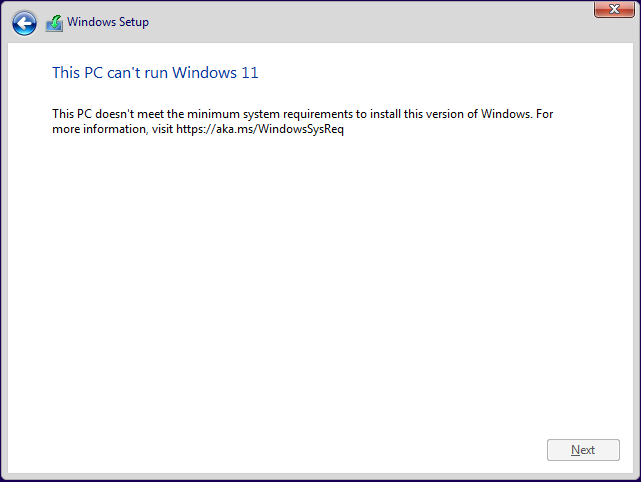
Fig 1: TPM Error
Solution: Fix “This PC Can’t Run Windows 11”
Step 1: Go Back
Click the Back icon in the top-left corner of the installation screen.
Step 2: Open Command Prompt
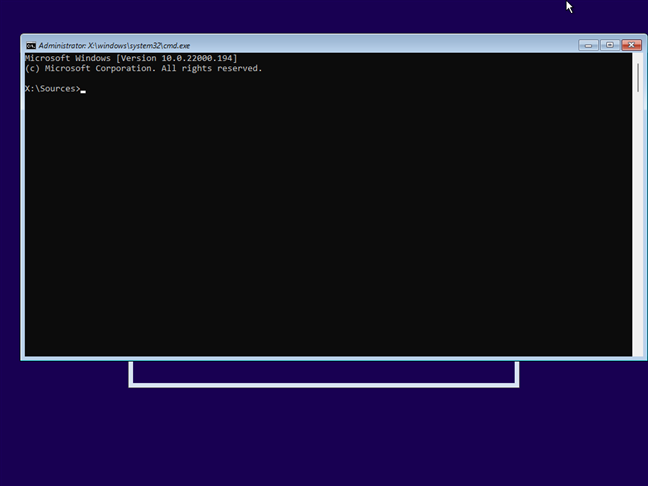
Press Shift + F10 to open the Command Prompt window.
Command Prompt Screenshot
Step 3: Bypass System Requirements
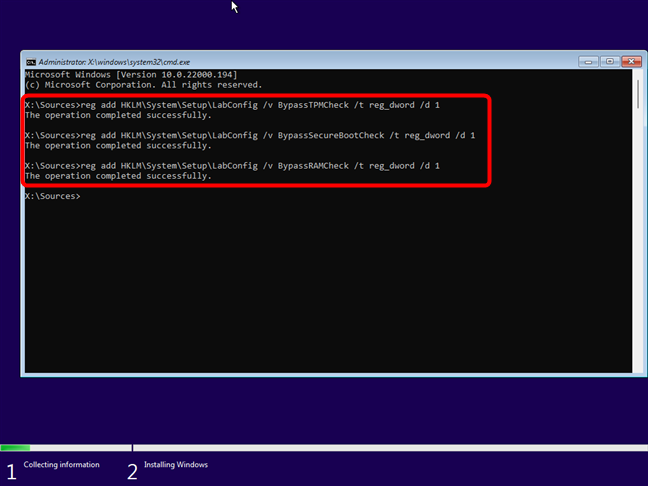
Run the following commands in the Command Prompt to bypass the TPM, Secure Boot, and RAM checks:
1
reg add HKLM\System\Setup\LabConfig /v BypassTPMCheck /t reg_dword /d 1
1
reg add HKLM\System\Setup\LabConfig /v BypassSecureBootCheck /t reg_dword /d 1
1
reg add HKLM\System\Setup\LabConfig /v BypassRAMCheck /t reg_dword /d 1
Command Execution Screenshot
Step 4: Proceed with Installation
Close the Command Prompt and continue with the Windows 11 installation. The error should no longer appear.
This post is licensed under CC BY 4.0 by the author.